
















Quick search: find anything and act on it with Cmd/Ctrl+K
Quick search in Herodesk is rebuilt. Press Cmd/Ctrl+K to find any conversation, filter as you type, preview it and act on it without leaving your keyboard.
- Inbox
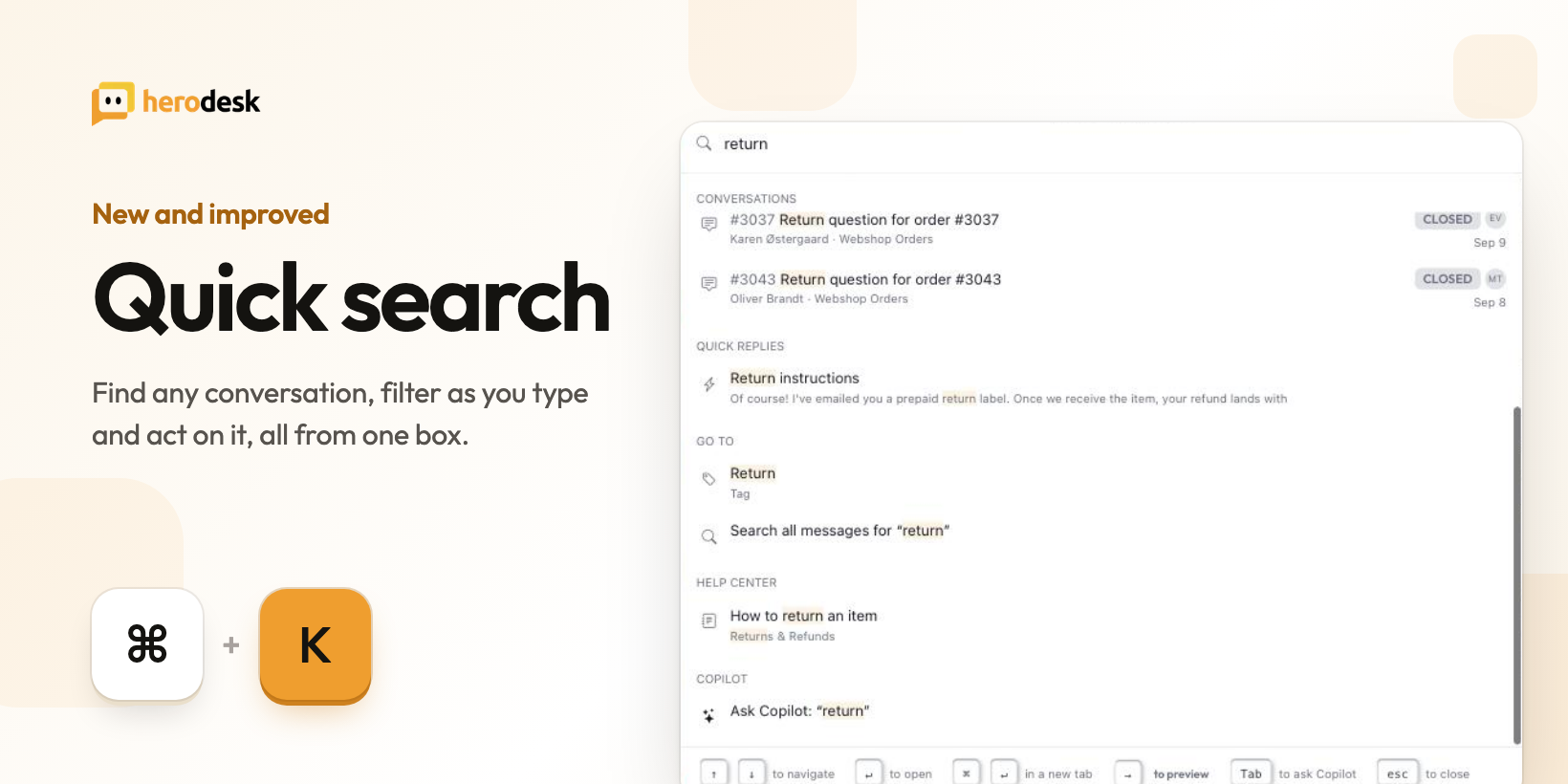
The search box you open with Cmd+K on a Mac or Ctrl+K on Windows has been rebuilt from the ground up. It still finds things. Now it also filters, previews and gets work done, so you can move through the inbox without reaching for the mouse.
One box for everything
Type a conversation number, a subject, a line from a message, or a customer’s name or email. Conversations come first, with the newest matching thread at the top, so the case you are looking for is rarely more than one arrow key away. Below them, the same search covers contacts, companies, inboxes, teammates, tags, settings pages, help-center articles and attachments.
Open it with nothing typed and it shows your recent searches and the conversations you viewed last, so getting back to where you were is one keystroke.
Filters that finish your sentence
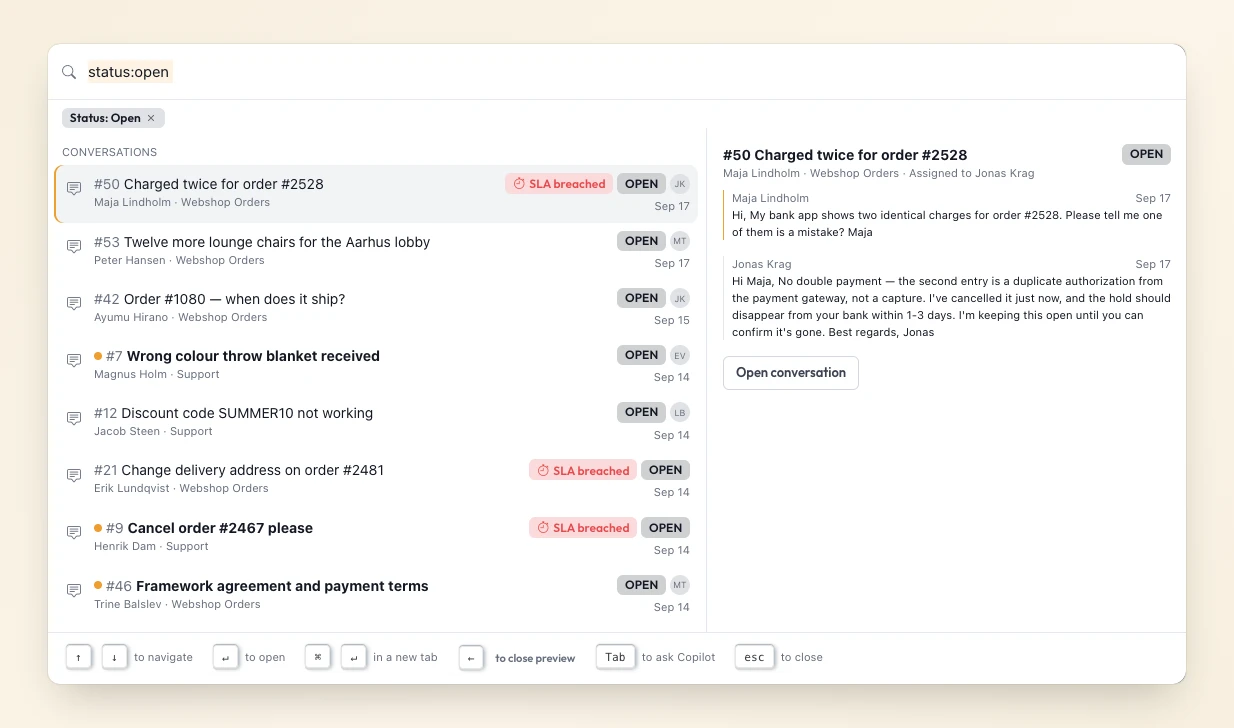
Type status:open, in:, is:, assignee:, from:, tag:, before: or after: and quick search suggests the matching values as you type. Each filter becomes a chip you can remove with one click, and you can stack as many as you need.
Every result shows its status, who it is assigned to and whether it is unread. On Pro you also see which conversations are at risk of breaking their SLA. Press the right arrow to preview a conversation’s latest messages in a side pane, without opening it.
Act on the conversation you are in
Open quick search on a conversation and its actions come first: close, reopen, snooze, assign, move to another team or inbox, add or remove tags, mark as spam, or merge. Choose “Add tag…” and the box turns into a searchable list of your tags. Pick a snooze and the preset times are shown as real dates.
It also works inside your reply. Search for a quick reply or a help-center article, choose it, and it lands in the reply editor.
Ask Copilot from the same box
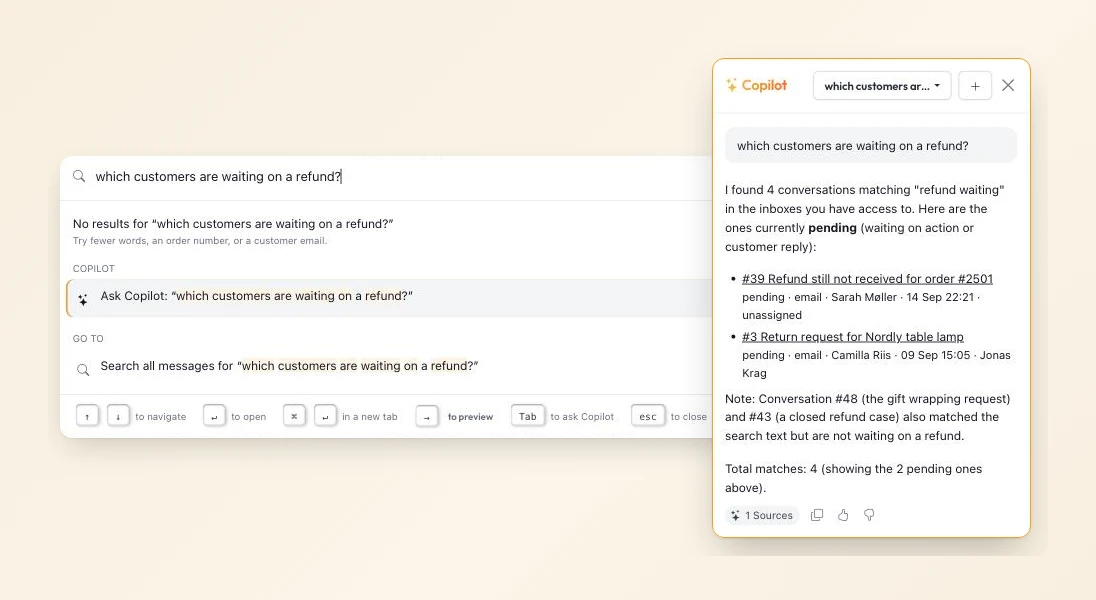
Some things you type are questions, not searches. When nothing matches, “Ask Copilot” is offered first, and pressing Tab sends any query to Copilot. The answer opens in the Copilot panel beside the conversation, with links to the conversations it found.
Where to find it
Press Cmd+K on a Mac or Ctrl+K on Windows anywhere in Herodesk. The shortcuts along the bottom of the box show the rest: arrow keys to move, Enter to open, Cmd/Ctrl+Enter to open in a new tab and Esc to close.
Quick search is included on every Herodesk plan, including Free. Snoozing needs a paid plan, Copilot is part of Plus, and SLA badges and team actions are part of Pro. Read more on the quick search feature page.
Give your team time back
Start your free trial with free VIP onboarding. Meet a product specialist online and get personal help until everything is up and running to your satisfaction.

Ken Primby
CEO · Pluspige
From a Herodesk customer
4 to 6
hours saved on cleanup after live sales
Read the customer story“Herodesk brought all our channels together, saved us several hours of manual cleanup after our live sales and gave the team a clear overview.”