
















Connect Outlook, Gmail or any IMAP mailbox
Connect your support mailbox by signing in with Microsoft, or over IMAP from any provider. Gmail sign-in is coming soon. No forwarding rules or DNS records.
- Channels
- Integrations
- Inbox
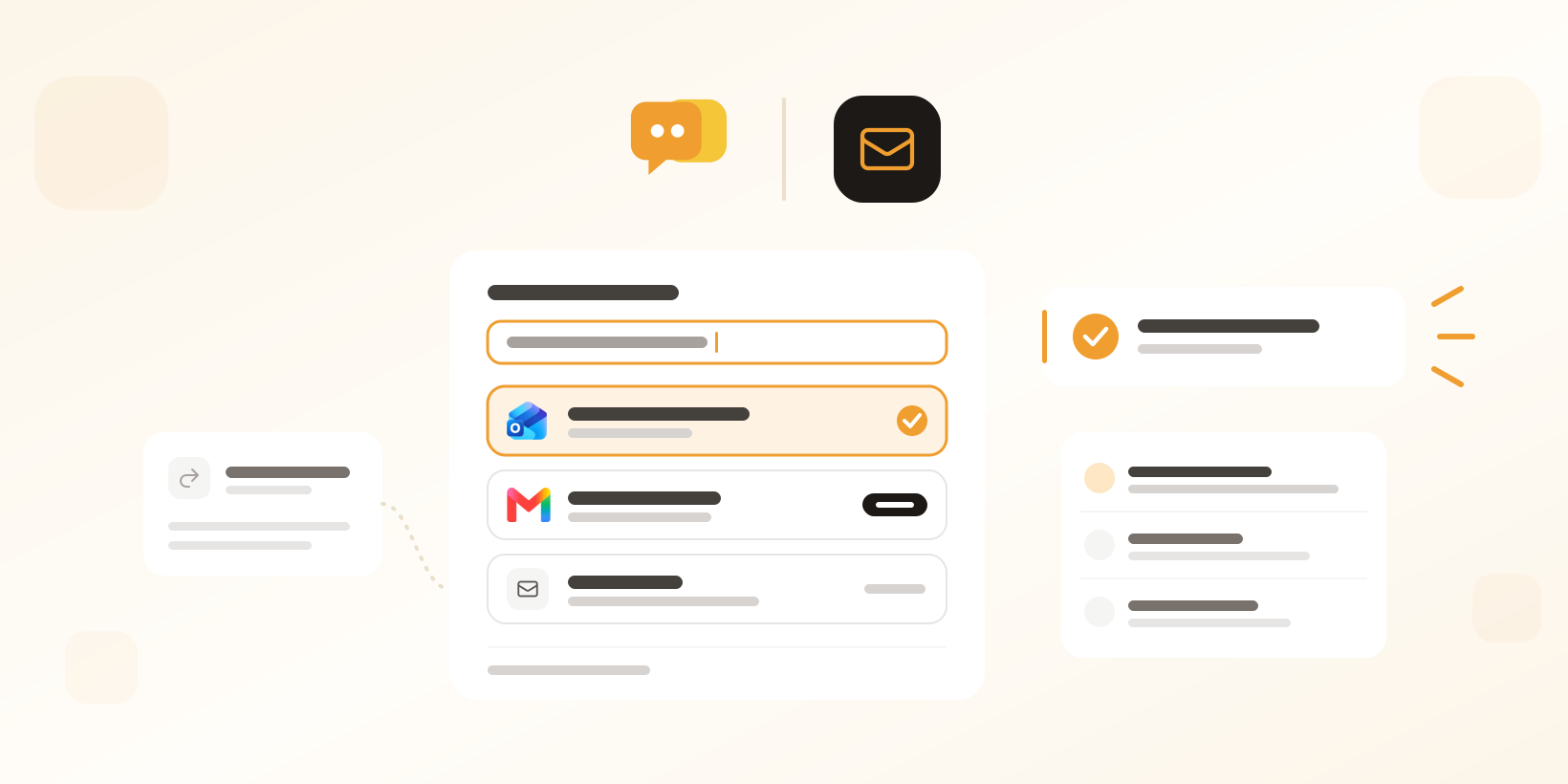
Until now, getting email into Herodesk meant two jobs: a forwarding rule in your mailbox, and DNS records on your domain so replies could go out under your own name. It works well, but it usually needs someone with access to both, and that person is rarely the one setting up support.
Now you can connect the mailbox itself. Type your support address, and Herodesk recognises the provider and recommends the easiest way in.
Three new ways to connect your email
Sign in with Microsoft for Outlook and Microsoft 365
Connect a Microsoft 365 or Outlook.com mailbox by signing in with Microsoft. That’s the whole setup. Microsoft 365 shared mailboxes you have access to, like support@ or orders@, connect the same way. If your organisation only lets an admin approve new apps, Herodesk gives you a link to send to your IT admin. See the Outlook integration
Sign in with Google for Gmail and Google Workspace (coming soon)
Signing in with Google works for Gmail and Google Workspace mailboxes, including the “Send mail as” addresses set up in Gmail. It is open to selected accounts while Google reviews the app, and we’ll open it to everyone as soon as that review is done. Until then, connect Gmail over IMAP. See the Gmail integration
IMAP and SMTP for every other mailbox
Any other provider connects over IMAP and SMTP with the mailbox’s password. Herodesk looks up the server settings for you, and you can enter them by hand if it can’t find them. If your provider uses two-step verification, we show you how to create an app password. See the email integration
Everything you send is in your Sent folder
Whether you connect with Microsoft, Google or IMAP, every email you send from Herodesk goes out through your own mailbox and is stored in its Sent folder, just as if you had written it in Outlook or Gmail. Your mailbox stays the complete record of your customer emails, and anyone who opens it sees the same history as your team does in Herodesk. And if a colleague answers straight from the mailbox, outside Herodesk, that reply is added to the matching conversation.
How a connected mailbox works
- Herodesk checks the mailbox every minute. New email in the inbox becomes a conversation and is marked as read in the mailbox.
- Only email that arrives after you connect is imported. You can also import the last 7 days, so you start with some context.
- No forwarding rules and no DNS records.
- If the connection is ever lost, the account gets an email warning with a one-click reconnect.
Already forwarding email to Herodesk?
Nothing changes unless you want it to. Forwarding, with replies sent from our mail servers under your own domain, is still fully supported. If you’d rather connect directly, you can move an existing forwarding channel to a mailbox connection in the channel’s settings.
Get started
Go to Settings, Channels, and add an email channel. Type the address, and Herodesk shows you the way in. If you’d like a hand, our free VIP onboarding covers it, or contact us.
Give your team time back
Start your free trial with free VIP onboarding. Meet a product specialist online and get personal help until everything is up and running to your satisfaction.

Ken Primby
CEO · Pluspige
From a Herodesk customer
4 to 6
hours saved on cleanup after live sales
Read the customer story“Herodesk brought all our channels together, saved us several hours of manual cleanup after our live sales and gave the team a clear overview.”