
















Connect your own tools to the AI agent with MCP
Connect any MCP server to Herodesk and choose which of its tools your AI agent and Copilot may use, with approval for every tool call that changes data.
- AI Agents
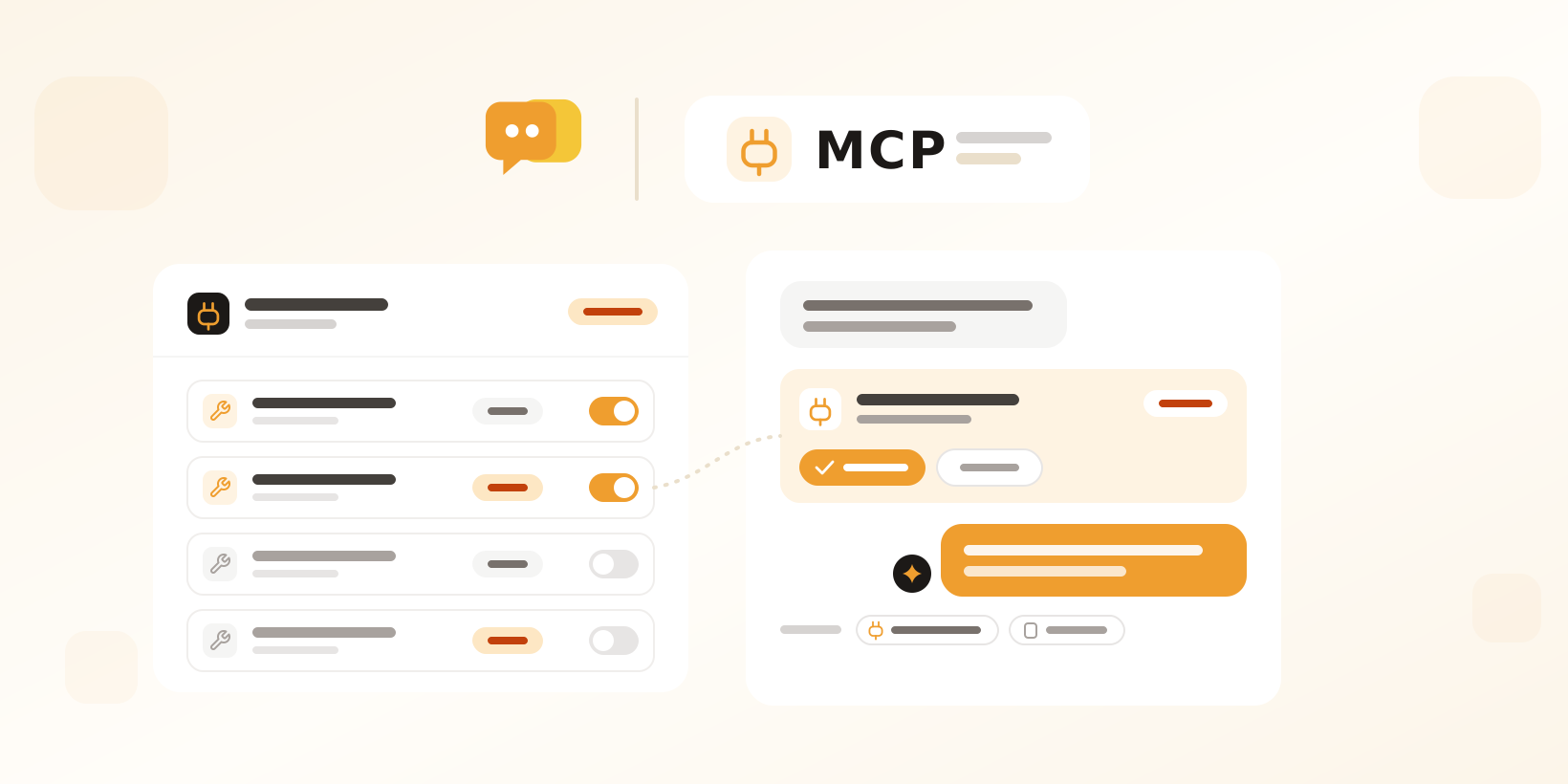
Your AI agent can now use tools from your other systems
Your AI agent already knows your help center, your website and the integrations you connect. Many teams also run systems we don’t have an integration for, like a booking engine, a loyalty platform or an internal API. If that system offers an MCP server, you can now connect it to Herodesk and let your AI agent and Copilot use its tools. MCP, the Model Context Protocol, is the open standard AI tools use to talk to other software.
This works the other way round from the Herodesk MCP server, which lets outside AI tools work with your Herodesk data. MCP tools bring the tools of other systems into Herodesk.
Connect a server in a few clicks
Add an MCP server in your AI agent’s settings with its address and the sign-in it needs: none, a bearer token, a custom header, or an OAuth sign-in with the provider. Tokens are stored encrypted and never shown again. Herodesk then lists the server’s tools and shows whether the server is located inside or outside the EU/EEA, so you know where conversation data goes before you switch anything on.
You decide which tools each agent may use
Every tool starts switched off, and so does every new tool the server adds later. Turn tools on per AI agent, and limit a tool to the topics where it makes sense, so the agent is only offered it in those conversations. Mark a tool as “verified customers only” and the agent runs it in live chat only after the customer has confirmed their email address. On email and other channels, the contact’s address counts as verified.
Tools that change data follow your deploy mode
Tools that only read data run directly. Tools that write, for example by creating or changing something in the other system, follow the agent’s deploy mode: in Assist mode the agent proposes each call, and nothing is sent until a teammate approves it in the conversation. A tool counts as a write tool unless the server marks it read-only, and you can mark any tool as a write tool yourself.
Copilot can use them too
Connect a server to Copilot, and Copilot can use all of its tools. It asks you to confirm before any tool that changes data runs.
Built to stay in your control
- If a tool’s definition changes on the server, Herodesk switches it off until an admin turns it back on.
- The AI agent makes at most five MCP tool calls per reply.
- Every call is logged with its input, output, duration and who approved it, and values that look like secrets are hidden. The log covers the last 90 days.
- Tool calls show up among the sources of the agent’s reply.
- If a server stops accepting Herodesk’s sign-in, you get an email asking you to reconnect it.
Get started
MCP tools come with every AI agent. Open your AI agent’s settings, add an MCP server and choose the tools it may use. Read more about MCP tools for AI agents or see how Herodesk AI agents resolve conversations for you.
Give your team time back
Start your free trial with free VIP onboarding. Meet a product specialist online and get personal help until everything is up and running to your satisfaction.

Ken Primby
CEO · Pluspige
From a Herodesk customer
4 to 6
hours saved on cleanup after live sales
Read the customer story“Herodesk brought all our channels together, saved us several hours of manual cleanup after our live sales and gave the team a clear overview.”